Plugin: Image Converter
A downloadable tool
Image Converter — Batch Format Conversion Plugin for EmoteShowcase
Important: Image Converter is a plugin for EmoteShowcase — a Windows desktop application. It is not standalone software. You must own EmoteShowcase to use this plugin. If you do not own it yet, purchase it here first.
What Is Image Converter?
Every platform wants a different file. Twitch takes PNG and GIF. Your website wants WebP. The client sent you a folder of HEIC photos from their phone, or a TIFF straight out of the scanner. Somewhere in the middle of that, you end up hunting for a sketchy website that will convert twelve files one at a time, with a watermark and an upload queue.
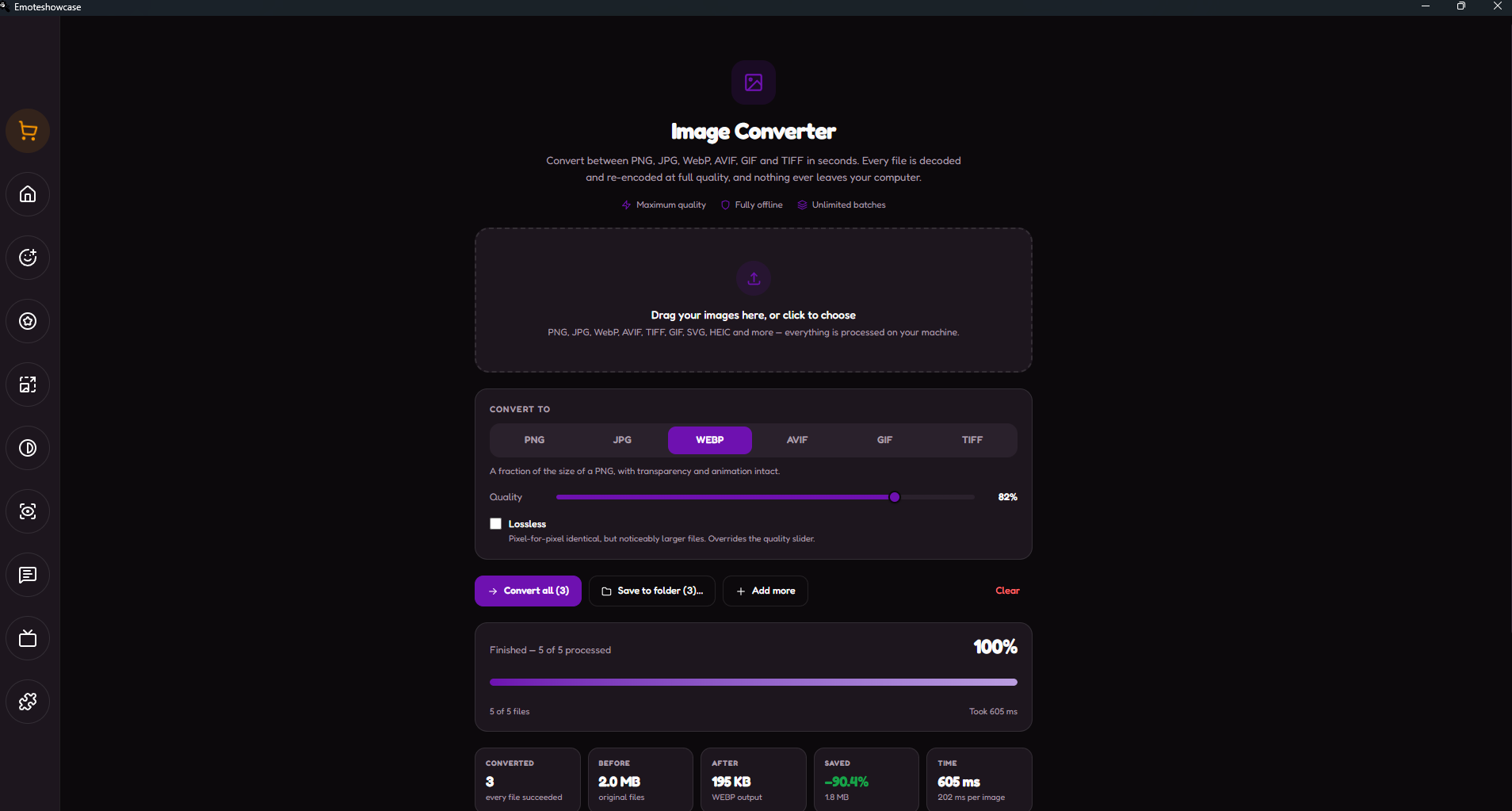
Image Converter does the whole batch at once, inside EmoteShowcase, on your own machine. Drop the files in, pick the output format, hit convert, and watch a real progress bar work through them. When it finishes you get a full before-and-after report — every file, its old size, its new size, and exactly how much you saved — and one button that writes the results to any folder on your disk.
It Reads Almost Anything
PNG, JPG, WebP, AVIF, TIFF, GIF, SVG, BMP, ICO, HEIC and more. There is no list of "supported extensions" to check against — every file is handed straight to the same professional imaging engine the app uses for its own exports, and anything that engine turns down gets a second attempt through a different decoder before it is given up on. Files that genuinely cannot be read are marked clearly in the list instead of silently failing mid-batch.
Six Output Formats, Each With Its Own Real Controls
PNG for emotes and badges, WebP for a fraction of the file size, JPG for photographs, AVIF for the smallest files of all, GIF for animation, and TIFF for print and archives. The controls change with the format, because the encoders genuinely are different: a quality slider for the lossy ones, a lossless switch for WebP and AVIF, and colour-palette reduction for PNG — which is the only thing that actually shrinks a lossless format.
Save Exactly Where You Want It
Not a downloads folder you then have to dig through — a proper Windows folder picker. Choose the folder, and the whole batch is written there. Existing files are never overwritten: a second cat.webp becomes cat (1).webp. There is an "Open folder" button waiting for you when it is done, and a save button on each individual row if you only want one of them.
Your Animation Survives
Ordinary converters flatten an animated GIF to its first frame without telling you. This one re-encodes every frame with its original timing when the target format can hold animation, so a GIF converted to WebP is still animated on the other side. When you pick a format that cannot animate, the plugin says so up front — before you convert, not after.
Transparency Handled Properly
Convert a transparent PNG to JPG in most tools and the transparent areas come out black. JPG simply has no alpha channel. Here you choose the colour those areas are filled with, and the plugin warns you how many of your files it affects before anything is written. Convert to PNG, WebP, AVIF, GIF or TIFF and your transparency is kept intact.
A Report You Can Actually Use
A live progress bar with the current file name and a running count while it works, and a summary when it is over: how many converted, the total size before and after, the exact percentage saved, and how long it took per image. Every row shows its own chain — PNG 9.6 MB → WEBP 651 KB −93% — so you can see at a glance which settings were worth it.
Straight Into The App
When you convert to PNG or GIF, one click sends the results into EmoteShowcase as emotes or badges — ready for the Rescaler, the Preview Simulator and the Chat Simulator, with no saving and re-importing in between.
Worth Knowing Before You Buy
- This plugin converts formats, it does not resize. Your images come out at their original dimensions. If you need to change the size, that is what the Image Resizer and GIF Resizer plugins are for.
- Lossy is lossy. Converting a JPG to PNG cannot restore detail that the JPG already threw away — it only stops any further loss.
- AVIF is not universal yet. It is excellent for the web, but older software may refuse to open it. If a format is not available on your system, the plugin greys the option out rather than failing halfway through your batch.
Why Use Image Converter?
- No more conversion websites: No uploads, no queues, no watermarks, no file-size caps.
- Whole folders at once: Drop in twenty files and walk away.
- Professional quality: Real encoders doing a real conversion, not a quick browser shortcut.
- Smaller files, measured: The report tells you exactly what each setting cost or saved.
- Works offline: All processing is local. Your artwork never leaves your computer.
- No subscriptions: Buy once, use forever. Updates are included with your EmoteShowcase license.
How to Get It
- If you do not own EmoteShowcase yet, purchase it on Itch.io (Windows only).
- Download and install the latest version of EmoteShowcase.
- Open the app and go to the Plugin Store from the toolbar.
- Find Image Converter and click Buy Now — a purchase popup powered by Itch.io appears inside the app.
- Complete the purchase and download the plugin .zip file.
- Go to Plugin Manager, click Install Plugin, and select the .zip file.
- The Image Converter view will appear in your tools. Drop in your images and start converting.
Windows Security Notice: When you first run EmoteShowcase on Windows, you may see a SmartScreen warning that says "Windows protected your PC." This is normal for applications that are not digitally signed. Click "More info" then "Run anyway" to launch the application. This step is only required on the first run.
EmoteShowcase — Professional Emote & Badge Desktop Tools
jorgedevreact.itch.io/emoteshowcase
Purchase
In order to download this tool you must purchase it at or above the minimum price of $2.99 USD. You will get access to the following files:
Leave a comment
Log in with itch.io to leave a comment.